First login
After you have set your password using the invitation link, you can log in to Phormic for the first time.
Where to log in
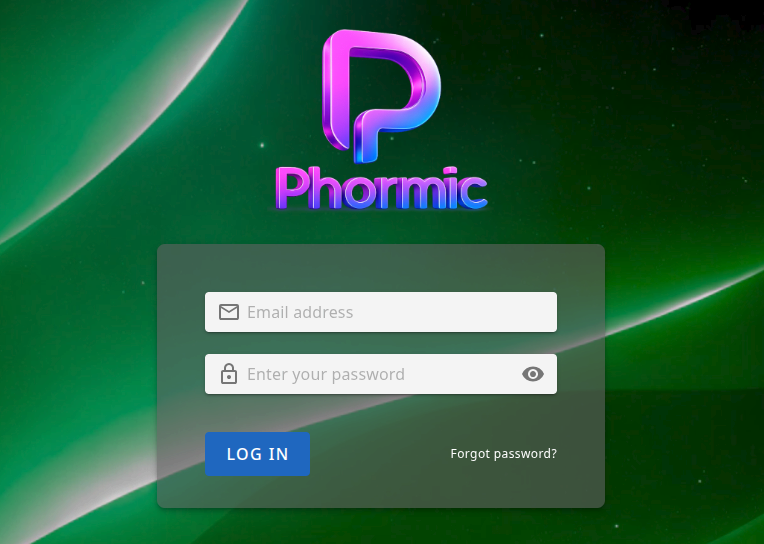
- Open the Phormic application in your browser (the URL is provided by your organization or in the invitation email).
- Go to the login page (often
/loginor a “Log in” link on the homepage).
What you need
- Email (or username, depending on how your organization has configured Phormic) — this is usually the same email to which the invitation was sent.
- Password — the one you created in Creating a password.
Logging in
- Enter your email (or username) in the first field.
- Enter your password in the password field.
- Click the Log in (or Sign in) button.
If the credentials are correct and your account is active, you are signed in and redirected to the main application (for example, the dashboard or home view).
After a successful login
The application:
- Issues an access token (JWT) so you stay logged in.
- Loads your user profile (e.g. name, email, position, avatar).
- Loads your permissions, groups, projects, and organizations so you only see what you are allowed to use.
You can then use the interface to work within your organization and assigned projects.
If login fails
| Message or behavior | Meaning | What to do |
|---|---|---|
| “Invalid credentials” | Wrong email/username or password. | Check spelling and caps lock. Try resetting your password if you forgot it. |
| “Account not activated” / “Please check your email for activation link” | Your account has not been activated yet. | Complete the steps in Creating a password using the invitation link. If the link expired, ask your administrator to resend the activation email. |
| “No active organization” | Your user account is not linked to an active organization. | Contact your administrator to assign you to an organization. |
Forgot password
If you have already activated your account but forgot your password:
- On the login page, use the Forgot password (or Recover password) link.
- Enter your email and submit.
- If an account exists, you receive an email with a link to reset your password. That link is valid for a limited time (e.g. one hour).
- Set a new password and then log in again with your email and the new password.
Next step
Once you are logged in, see First steps in the system for an overview of the interface and what you can do next.