Timespan
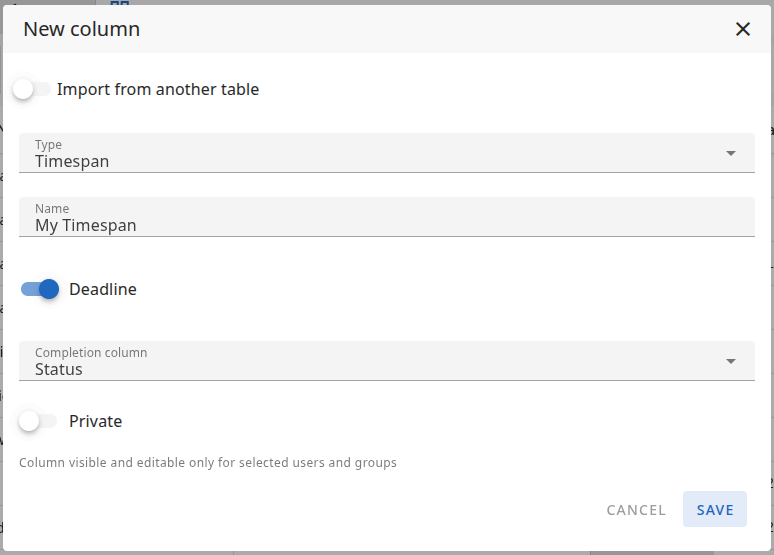
A Timespan column stores a date range — users choose the start and end date (and optionally time) via a calendar. In addition to Name and Private, you can enable the Deadline option to link the column to a Status column and show a progress indicator based on time remaining until the end date.
New column form
When you add a Timespan column, you configure it in the New column modal.
Name
The Name of the column — this is the label shown in the table header. For example: "Duration", "Period", "Deadline".
Deadline
When Deadline is on, the column is linked to a Status column of your choice. The system then shows a progress indicator next to the date range that fills as time passes toward the end date:
- Before start — The indicator is grey (start date not yet reached).
- In progress — The indicator fills and changes colour by how much of the period has elapsed:
- Green (success) — Less than about half of the time has passed.
- Orange (warning) — More than half; approaching the end.
- Red (error) — Near or past the end date (e.g. 75–100% or over).
When you hover over the indicator, you see what percentage of the time has elapsed.
If the row has a Completed option selected in the linked Status column (i.e. an option marked as "Completed" in the Status column settings), the Timespan cell changes style: the date range is struck through, the text turns green, and the indicator turns green with a checkmark inside so it is easy to see that the item is done.

How the Deadline link to a Status column works: progress indicator, colours, and the "Completed" state (struck-through dates, green checkmark).
Private
When Private is on, the column is visible and editable only for selected users and groups. You define who can view and edit the column. Other users will not see or edit this column.
Column types: Overview · Text · Number · Status · Timespan · Date · People · List · Project list · Files · Owner · Checkbox · ID