Status
A Status column lets you define a fixed set of options (e.g. workflow states like New, In progress, Completed). Each cell shows one chosen option, with a background colour you define. One option can be marked as "Completed", which the system uses for styling and behaviour (e.g. filters, views).
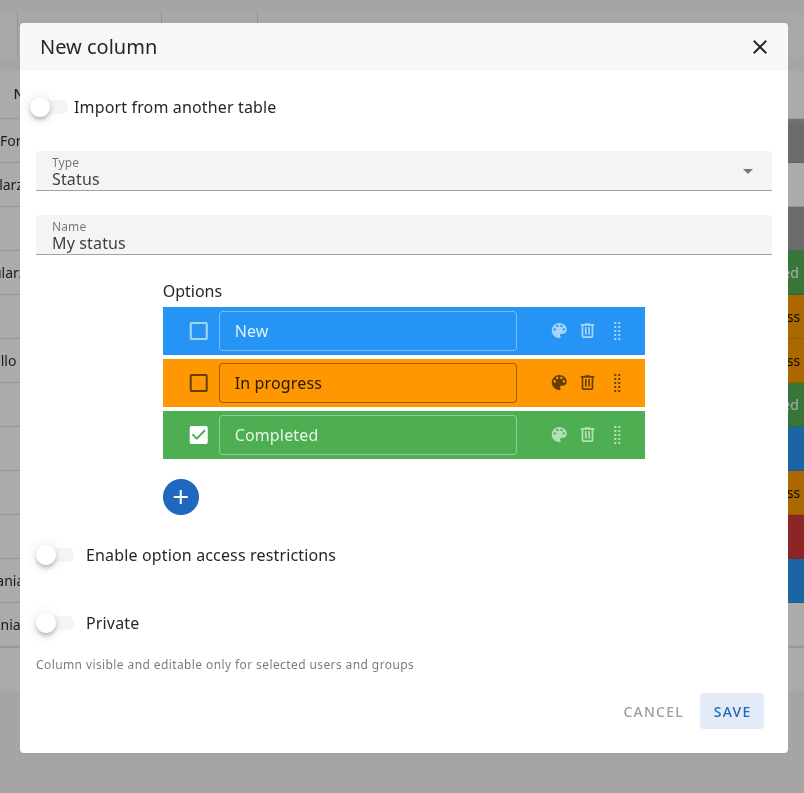
New column form
When you add a Status column, you configure it in the New column modal. The main fields are described below.
Name
The Name of the column — this is the label shown in the table header. For example: "Status", "Stage", "State".
Options
This section defines the list of status values:
- Add options — You can add as many options as you need (e.g. New, In progress, On hold, Completed).
- Colour — For each option you can set a background colour; cells with that status will be filled with that colour in the table.
- Order — Options can be reordered by drag & drop. The order here is the order in which options appear in the table (e.g. in dropdowns or filters).
- Completed — Each option row has a checkbox to mark that option as the "Completed" (or equivalent) state. The system uses this to apply specific styles and behaviour (e.g. treating the row as done, different filters or views).
Use the + button below the list to add a new option; use the trash icon to remove one, and the palette icon to change its colour.
Enable option access restrictions
When this option is on, you can define which users and groups have view and edit access to each option (e.g. only some users can set "Completed"). This allows fine‑grained control per status value.
Private
When Private is on, the column is visible and editable only for selected users and groups. You define who can view and edit the column as a whole. Other users will not see or edit this column.
In the table
In the table, clicking a Status cell opens a menu with all available options. Choosing an option updates the value for that cell. The option marked as Completed in the column settings is shown in the menu with an extra indicator — a circle with a checkmark inside — so you can quickly see which status means "done".

Animated clip: click the cell to open the menu, then select an option. The "Completed" option is marked with a circle and checkmark. If the animation does not play, try opening the video file in a new tab or convert it to WebM/MP4 for full playback control.
Column types: Overview · Text · Number · Status · Timespan · Date · People · List · Project list · Files · Owner · Checkbox · ID