List
A List column stores one or more values chosen from a fixed set of options defined at table level — for example category, priority, or type. Options are configured only for this table. For a list shared across the project, use a Project list column instead.
New column form
When you add a List column, you configure it in the New column modal.
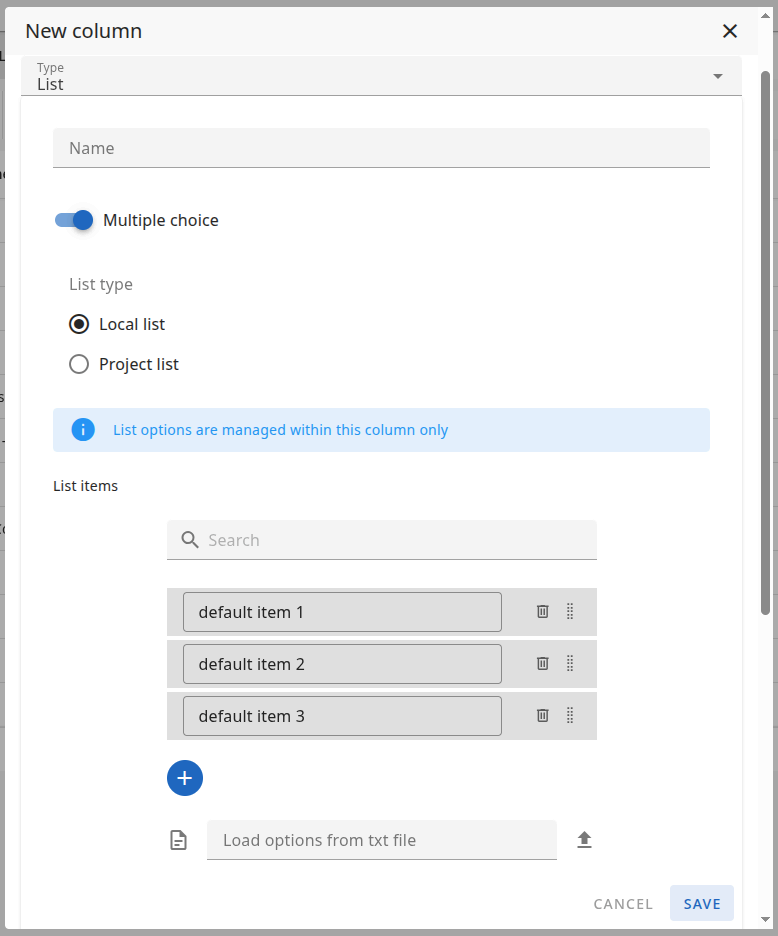
Name
The Name of the column — this is the label shown in the table header. For example: "Category", "Priority", "Type".
Multiple choice
When Multiple choice is on, users can select more than one option from the list in each cell. When it is off, only one option can be selected per cell.
List type
This option determines where the list options come from:
- Local list — The list is local to this table. You define and edit the options in this form (see List items below).
- Project list — The column is linked to a project list defined at project level. In that case you do not configure options in this window; the options are taken from the project list.
List items
List items are the options available in the column. You can add as many as you need. There are several ways to manage them:
- Manual — Add, edit, and sort items by hand. Use drag & drop to reorder; the order here is the order shown in the table (e.g. in dropdowns).
- Import from file — Use the form below the list to import options from a text file. The file content is used to create or update list items.
- Paste from clipboard — Place the cursor in the value field of the first option (or the import field) and paste from the context menu (Paste) or with the system shortcut: Ctrl+V (Windows/Linux) or Command+V (Mac). Multiple lines in the pasted text can become separate list items, depending on the import behaviour.
Enable option access restrictions
When this option is on, you can define which users and groups have view and edit access to each option. This allows fine‑grained control per list value.
Private
When Private is on, the column is visible and editable only for selected users and groups. You define who can view and edit the column as a whole. Other users will not see or edit this column.
In the table
How the List column behaves in the table depends on the Multiple choice setting:
Single choice (Multiple choice off) — one option per cell:
Multiple choice (Multiple choice on) — several options per cell:
Column types: Overview · Text · Number · Status · Timespan · Date · People · List · Project list · Files · Owner · Checkbox · ID